
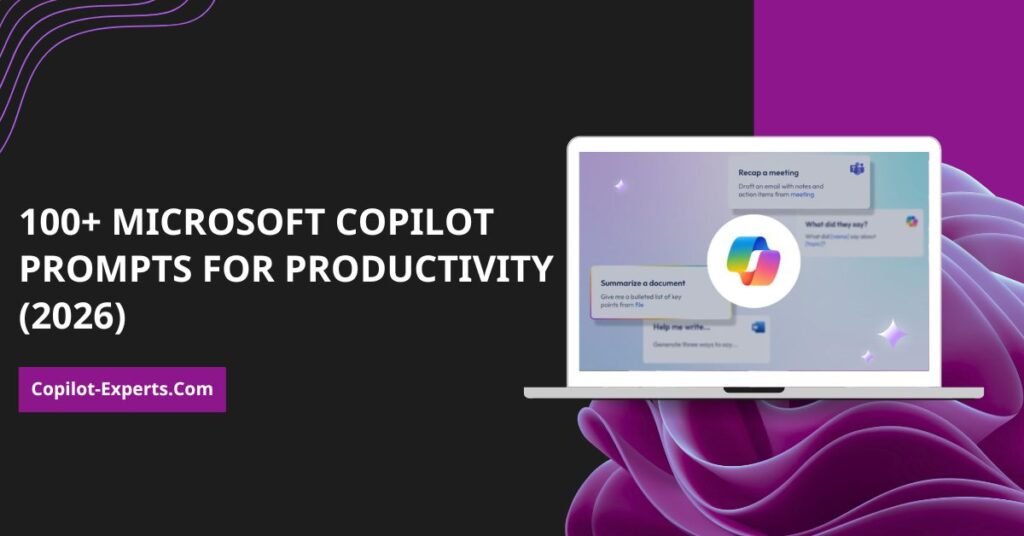
Microsoft 365 Copilot requires precise prompts to save you time. An effective Copilot prompt always includes a clear goal, specific context, an expected format, and a defined data source. This guide provides over 100 tested prompts across Word, Excel, PowerPoint, Teams, and Outlook to help your team automate tasks and increase daily productivity.
Teams using Microsoft 365 Copilot are 70% more productive, finish tasks 73% faster, and spend 64% less time on email. However, most users do not see these time savings immediately. They write vague requests and receive generic outputs.
To get actionable results, you need a precise prompt with context. The quality of your results depends entirely on the quality of your instructions. This guide gives you a framework for writing effective prompts and over 100 ready-to-copy examples tested by Copilot experts.
What exactly is a Microsoft 365 Copilot prompt?
A prompt is the direct instruction you give Microsoft 365 Copilot. It tells the AI exactly what goal to achieve, what context to apply, what format to produce, and where to find the source content.
The four essential elements of a prompt
| Element | Purpose | Example |
|---|---|---|
| Goal | The task you want completed | “Summarise this document.” |
| Context | The situation or audience | “For a leadership review.” |
| Expectations | The required output format | “In 5 bullet points with next steps.” |
| Source | The input content to use | “Use this email thread.” |
Organizations need standardized prompts. When your team uses a shared prompt library, they spend less time experimenting. Output quality becomes consistent across your organization, and knowledge work scales without requiring everyone to become a prompting expert.
How do you write an effective Copilot prompt?
Writing an effective prompt requires a simple, repeatable framework. Follow these five steps:
Step 1: Define your goal
Decide what action Microsoft 365 Copilot should take. State whether you want to draft, summarise, analyze, compare, or rewrite text.
Step 2: Add context
Explain the situation. Tell Copilot who the audience is, what the tone should be, and what the timeframe is.
Step 3: Set your expectations
Specify the format. Ask for bullet points, a table, a slide outline, or a strict word count.
Step 4: Specify the source
Point Copilot to the data. Tell it to use a specific email thread, document, meeting transcript, or dataset.
Step 5: Iterate and refine
Treat Microsoft 365 Copilot as a conversation. Use follow-up prompts to refine the tone, length, or structure until you get the exact output you need.
What are the best practices for Copilot prompting?
To get the best results from Microsoft 365 Copilot, you must follow clear rules.
Do this:
- Be specific: “Draft an email to the marketing team about the sales campaign, highlighting key dates.”
- Use natural language: “Create a PowerPoint deck on our new product for an executive audience.”
- Provide context: “Based on the OneNote notes from last Tuesday, create a follow-up task list.”
- Ask for help: “Act like a prompt engineer and write a better prompt for [goal].”
Do not do this:
- Be vague: “Give me a summary.”
- Overcomplicate: Long, meandering prompts confuse the system.
- Use negative instructions: Saying “Don’t make this too casual” is less effective than “Write in a professional tone.”
How do Copilot Memory and Custom Instructions work?
Microsoft 365 Copilot includes Memory and Custom Instructions to personalize your experience. Copilot Memory pulls details from past conversations to ensure relevance. You can say, “Always respond with short bullet points,” and Copilot will apply that rule to future responses.
Custom Instructions give Copilot background on who you are. You can specify your role, such as “I am a system administrator building SharePoint intranets.” You can also set your default communication style to ensure your emails and documents sound like you.
100+ Microsoft 365 Copilot prompts by application
Here are over 100 tested prompts you can copy and paste directly into your Microsoft 365 applications.
What are the best Copilot prompts for Microsoft Word?
- “Draft a 1-page executive summary of this document.”
- “Rewrite this section to be 30% shorter without losing meaning.”
- “Convert this into customer-friendly language.”
- “Create a proposal outline with clear headings.”
- “Extract key points into bullets.”
- “Identify risks and assumptions in this document.”
- “Rewrite this section for an executive tone.”
- “Generate a strong conclusion paragraph.”
- “Create three tone variations of this paragraph.”
- “Turn these notes into a structured document.”
- “Write a blog on [topic] for [audience] using [data source].”
- “Proofread the quarterly report and make the introduction more direct.”
- “Summarise this document into 5 bullet points and insights.”
- “Turn these notes into a polished report.”
- “Create a table of contents for this document.”
- “Highlight the risks and recommendations in this text.”
- “Reformat into a professional template with headings, bullets, and a clean layout.”
- “Compare this version to the earlier draft and show the main changes.”
- “Explain this section in simpler terms for a non-technical audience.”
- “Extract all action items from this document.”
What are the best Copilot prompts for Microsoft Outlook?
- “Summarise this email thread in 6 bullets with decisions and next steps.”
- “Draft a polite reply confirming the timeline and asking for approval.”
- “Rewrite my email to sound more professional and concise.”
- “Extract action items from this thread and assign owners if stated.”
- “Draft a follow-up email reminding the recipient about pending inputs.”
- “Create 3 subject line options: formal, neutral, urgent.”
- “Turn this email into a short update for leadership.”
- “Suggest a response that acknowledges concerns and proposes a solution.”
- “Rewrite this email for clarity and brevity.”
- “Draft a customer-ready email summarising agreements and next steps.”
- “Draft a short email to [team] outlining the upcoming [project/campaign].”
- “Summarise this email chain into key points and action items.”
- “Find all emails related to [topic].”
- “Flag all emails from [person] in the last week as high priority.”
- “Summarise my emails from last week and prioritize by urgency.”
- “Summarise all unread emails from the last [X days], focusing on [projects].”
- “Based on today’s calendar, summarise meetings with attendees and objectives.”
- “Summarise this email thread into 5 bullets, including decisions and unanswered questions.”
- “Draft a concise, professional reply thanking the sender and answering questions.”
- “Turn this email into a meeting invite with key details included.”
What are the best Copilot prompts for Microsoft Teams?
- “Summarise key discussion points from this meeting.”
- “List the decisions made and the reasoning behind them.”
- “What action items were assigned to me?”
- “What did I miss in the first half of the meeting?”
- “Where did participants disagree in this discussion?”
- “Draft a stakeholder recap email from this meeting.”
- “Extract risks from this discussion and propose mitigations.”
- “Create a next-steps checklist with owners and due dates.”
- “Summarise the meeting chat into 5 bullets.”
- “What questions should I ask to move this project forward?”
- “Recap our meeting on [topic] with action items.”
- “What work do I have going on with [name]?”
- “Describe the tone of the meeting I missed.”
- “Organize my meetings into categories and summarize each.”
- “Remind me 10 minutes before my next meeting.”
- “Summarise our chat from the last two days.”
- “What were the key takeaways from the last meeting?”
- “Turn this conversation into a to-do list.”
- “Draft a message to [name] for a quick update on [task/project].”
- “Create a table containing meeting follow-ups with person, timeline, and task.”
What are the best Copilot prompts for Microsoft Excel?
- “Summarise key insights from this dataset.”
- “Identify anomalies in this data and explain them.”
- “Explain this spreadsheet in plain language.”
- “Create a summary table broken down by category.”
- “Compare month-over-month changes in this data.”
- “Recommend the best chart type for visualizing this data.”
- “Forecast next quarter based on current trends.”
- “Generate a pivot table structure for this dataset.”
- “List the top values and their percentage contribution.”
- “Create a narrative summary I can use in a report.”
- “Create a PivotTable from [data set].”
- “Analyze sales data and summarise five key trends.”
- “Visualize this table as a bar chart.”
- “What is the total value of my inventory?”
- “Analyze with Python.”
- “Add a formula to calculate the percentage difference between columns A and B.”
- “Clean up data by removing duplicates and filling missing values.”
- “Add conditional formatting to highlight values greater than 1000.”
- “Merge these two data tables based on this column.”
- “Analyze Excel sales data for Q1. Identify top products and trends vs last quarter.”
What are the best Copilot prompts for Microsoft PowerPoint?
- “Create a 10-slide deck outline on this topic.”
- “Turn this Word document into a presentation.”
- “Rewrite these slides for an executive audience.”
- “Create a business value slide for this project.”
- “Add speaker notes to each slide.”
- “Build agenda and conclusion slides for this deck.”
- “Improve the narrative flow of this presentation.”
- “Create a 1-slide summary of the entire deck.”
- “Turn this content into a persuasive story.”
- “Generate 3 strong title options for this presentation.”
- “Create a presentation on [topic] for [specific audience].”
- “Improve clarity and conciseness of text on slide 5.”
- “What are the key takeaways from this presentation?”
- “Using this slide deck as a template, add content from [document].”
- “Create an agenda slide.”
- “Act like a comic book writer. Create a superhero team for [project].”
- “Create a presentation mask for brand guidelines.”
- “Generate 5 image suggestions for a slide about [topic].”
- “Create an animation timeline for the product launch deck.”
- “Summarise this 50-slide deck into 10 key slides.”
How can you advance your prompting techniques?
To master Microsoft 365 Copilot, you must move beyond basic prompts. Always structure your instructions correctly. Put your source data at the very end of your prompt, because Copilot places more emphasis on the later parts of your instructions. Use positive instructions to tell the AI exactly what to do, rather than what to avoid. Finally, always verify the accuracy of the output. Microsoft 365 Copilot predicts text based on patterns, so you must cross-check facts and confirm dates.
Read This: Best Microsoft Copilot Prompts for Work, Excel & Teams 2026
Where do organizations gain the most business value from Copilot?
Organizations that deploy Microsoft 365 Copilot with a clear prompting strategy see measurable returns.
| Business Area | Value Delivered |
|---|---|
| Productivity | Faster drafting, summarisation, and reporting cycles. |
| Decision-making | Cleaner meeting outputs with clear, assigned action items. |
| Consistency | Standardized structure and tone across all company documents. |
| Knowledge access | Rapid insight discovery without manually digging through files. |
How do you safely govern Copilot use?
Implementing Microsoft 365 Copilot requires strict data security. Apply sensitivity labels to your documents before referencing them in prompts. Train your users on safe prompting practices so they understand what data to include and exclude. Build a centralized prompt library, starting with your five most common workflows, and publish it to the Microsoft Copilot Prompt Gallery for your team to use.
How can Copilot Experts help your organization?
Copilot Experts provides tailored Microsoft 365 solutions. Founded in 2017 in Bengaluru, our Microsoft 365 Certified experts help you implement Microsoft 365 Copilot safely and effectively. We manage everything from initial consultation and strategy to user training and ongoing support. With over 40 global clients, we ensure you move from simple Copilot access to measurable business outcomes.
Frequently Asked Questions
What is a Microsoft 365 Copilot prompt?
A Microsoft 365 Copilot prompt is a direct instruction giving the AI a goal, context, format expectations, and a source. A clearer definition produces a more reliable output.
Do Copilot prompts work the same across all Microsoft 365 apps?
The framework is consistent, but the capabilities vary by app. Word focuses on drafting and editing, Excel handles data analysis, Outlook manages email, Teams handles meeting intelligence, and PowerPoint creates presentations.
How do I get better outputs from Copilot quickly?
Define a clear goal, add context, specify your format, reference your source, and iterate. The first output is rarely final. Use follow-up prompts to refine the result.
Is Microsoft 365 Copilot safe for enterprise use?
Yes. Microsoft 365 Copilot works within your existing Microsoft 365 permissions and respects data access boundaries. Microsoft Purview provides additional governance and compliance controls.
Turn Copilot into a daily productivity engine
Understanding Microsoft 365 Copilot is only the first step. Getting the most from your investment requires a clear prompting framework, a reusable prompt library, and proper governance. Use the prompts in this guide to automate your daily workflows and begin saving hours of manual work every single week.
