Microsoft Copilot is changing how people work. Tasks that once took hours — writing reports, summarising meetings, analysing data — can now be completed in minutes. But the quality of what Copilot produces depends almost entirely on one thing: the prompts you give it.
A weak prompt gets a weak result. A well-crafted prompt gets something genuinely useful. That gap matters, especially when you are trying to save time and get real work done across Microsoft 365 apps like Excel, Teams, Outlook, Word, and PowerPoint.
This guide covers everything you need to know about Microsoft Copilot prompts in 2026. You will learn what prompts are, how they work, and how to write better ones. You will also find ready-to-use prompt examples for each major Microsoft 365 application, along with real-world use cases by team and function.
Whether you are using Copilot for the first time or looking to get more out of it, this guide gives you the practical foundation to make it work for your organisation.
What Are Microsoft Copilot Prompts?
A Microsoft Copilot prompt is an instruction or question you type into Copilot to tell it what you want it to do. It is how you communicate with the AI.
According to Microsoft’s own documentation, a Copilot prompt can include up to four parts:
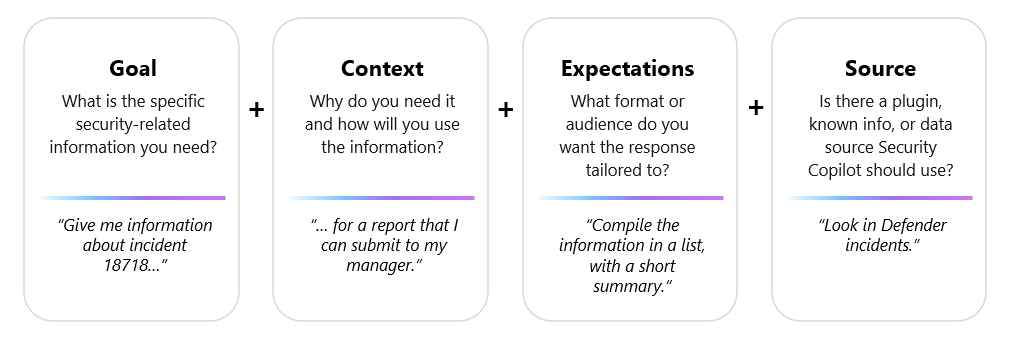
- Goal — what you want Copilot to do
- Context — background information to help Copilot understand the task
- Expectations — the format, tone, or style you want
- Source — specific files, emails, or data you want Copilot to reference
All that is technically required is a clear goal. However, the more detail you provide, the better the result. For example:
| Type | Example |
|---|---|
| Weak prompt | “Write a report” |
| Strong prompt | “Write a summary of this sales report, highlighting the top three trends and any areas of concern.” |
With Copilot, you can create content, summarise documents, analyse data, ask questions, and catch up on missed meetings — all through natural language instructions.
How Microsoft Copilot Prompts Work
When you enter a prompt in a Microsoft 365 app, Copilot does not simply search for an answer. It goes through a structured process:
- You enter a prompt in an app like Word, Teams, or Outlook.
- Copilot preprocesses the prompt using a process called grounding. This improves the relevance of your request by pulling in contextual data from Microsoft Graph — your emails, chats, documents, and meetings that you have permission to access.
- The grounded prompt is sent to a large language model (LLM), powered by Microsoft Azure OpenAI Service. The model processes the prompt and generates a contextually relevant response.
- Copilot returns the response directly within the app you are using.
This architecture means Copilot understands not just your words, but your workplace context. It knows the terminology in your documents, the people in your organisation, and the projects you are working on — all within your organisation’s security boundary.
Importantly, Copilot only accesses data you have permission to view. It does not expose other users’ files or emails.
Tips for Writing Effective Copilot Prompts
Better prompts lead to better results. Here are the most important principles to follow.
Be Clear and Specific
Vague instructions lead to generic responses. The more precise you are, the more useful Copilot’s output will be.
- Weak: “Summarise this document.”
- Strong: “Summarise this document in five bullet points, focusing on the key business risks and recommended actions.”
Provide Context
Tell Copilot who the audience is, what the purpose is, and any relevant background. Context helps it tailor the response appropriately.
- Example: “I am preparing a briefing for senior leadership. Summarise this report in plain language, avoiding technical jargon.”
Specify the Format You Want
If you need a table, a numbered list, or a professional email, say so. Copilot follows formatting instructions well.
- Example: “Create a table comparing the three options discussed in this document, with columns for cost, timeline, and risk.”
Reference a File or Source
You can use the / command in apps like Word and Copilot Chat to reference a specific document. This grounds Copilot’s response in your actual content.
- Example: “Draft a project update email based on the notes in /Q2 Project Review.docx.”
Iterate and Refine
Do not expect perfection on the first attempt. Copilot works best as a conversation. Follow up your first prompt with refinements like:
- “Make it more concise.”
- “Rewrite this in a more formal tone.”
- “Add a section on next steps.”
Best Microsoft Copilot Prompts for Work
These general-purpose prompts work well across Microsoft 365 applications and are useful for a wide range of roles.
- “Summarise this document into five key bullet points.”
- “Create a project update report based on the content of this document.”
- “Generate a professional email based on these meeting notes.”
- “Write a weekly progress report based on this data.”
- “Turn this document into a presentation outline.”
- “Create a training course outline to onboard new employees to [project name].”
- “Draft an outline for a team briefing on [topic].”
- “What is the latest update from [colleague name]?”
These prompts save meaningful time for employees across all seniority levels. A task that might take 30 minutes to draft manually can be completed in seconds, with the human reviewing and adjusting the output.
Best Copilot Prompts for Microsoft Excel
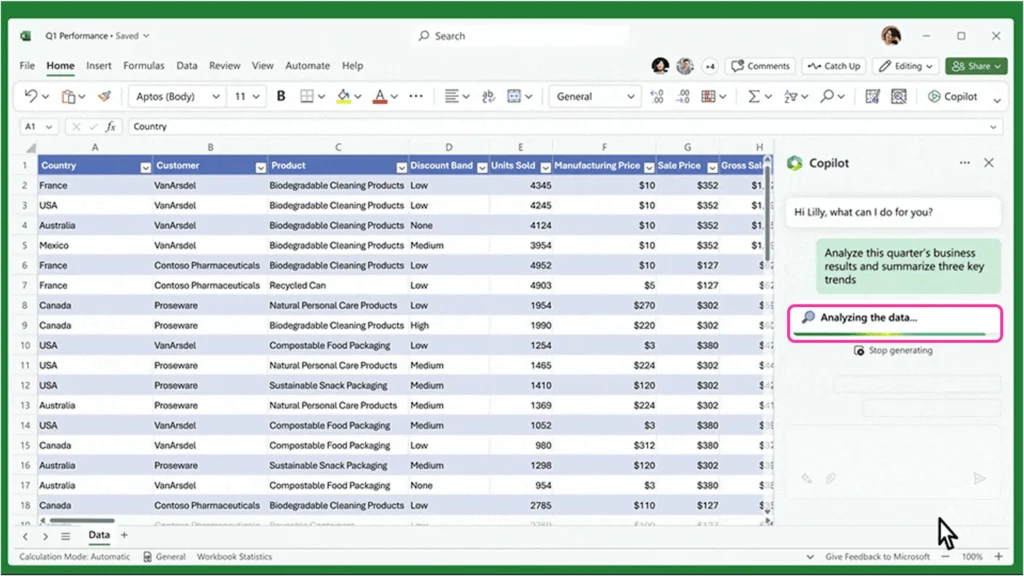
Copilot in Excel helps you analyse data, generate formulas, and spot trends without needing deep technical knowledge. Your data should be formatted as a table before using most of these prompts.
Data Analysis Prompts
- “Analyse this dataset and highlight key trends.”
- “Are there any outliers in my data?”
- “Which deals over £10,000 have the quickest sign-off timeline?”
- “Identify the top-performing regions in this sales table.”
Formula Creation Prompts
- “Create a formula to calculate total revenue for each product category.”
- “Generate a formula to calculate profit margin as a percentage.”
- “Add an extra column that converts the values in the ‘Seconds’ column into minutes.”
Visualisation Prompts
- “Create a chart showing sales trends over the last 12 months.”
- “Convert this table into a pie chart.”
- “Add green-yellow-red conditional formatting to the Percentage column.”
Finance teams, analysts, and operations managers will find these prompts particularly valuable. Rather than spending time building complex spreadsheets from scratch, Copilot can generate formulas, surface insights, and produce visualisations on demand.
Best Copilot Prompts for Microsoft Teams
Copilot in Teams is especially powerful for managing meetings and keeping distributed teams aligned. For meeting-based prompts, transcription must be enabled.
Meeting Summary Prompts
- “Summarise the key points from this meeting.”
- “List all action items from today’s discussion.”
- “What questions were asked, answered, and unresolved?”
- “Recap the meeting so far.” (use during a live meeting)
Collaboration Prompts
- “Summarise the chat conversation from the past week.”
- “Highlight the most important decisions made in this meeting.”
- “What was the mood of the meeting?”
Project Management Prompts
- “Generate a list of tasks based on this meeting discussion.”
- “Draft an email to meeting participants summarising the key outcomes and action items.”
- “For each participant, what was their biggest concern?”
Remote and hybrid teams benefit enormously from these prompts. Missing a meeting no longer means missing critical decisions. Copilot captures key points, action owners, and next steps automatically.
Best Copilot Prompts for Microsoft Outlook
Copilot in Outlook reduces the time spent reading and writing emails. It can summarise long threads, draft replies, and even coach you on tone and clarity.
Email Drafting Prompts
- “Write a professional reply to this email.”
- “Draft a follow-up email after our project meeting.”
- “Write a brief overview of this email for my manager.”
- “Draft a response to this customer complaint in a calm and professional tone.”
Email Summarisation Prompts
- “Summarise this email thread into a high-level executive overview.”
- “What are the key decisions and action items from this thread?”
You can also trigger a summary by selecting Summary by Copilot at the top of any email thread in Outlook. Copilot scans the conversation and creates a summary with numbered citations linking back to specific emails.
Email Coaching
Copilot in Outlook can also review drafts and provide suggestions on tone, clarity, and sentiment before you send — a useful feature for customer-facing roles or sensitive communications.
Customer service teams and sales professionals can use these prompts to handle higher email volumes without sacrificing quality or personalisation.
Best Copilot Prompts for Microsoft Word
Copilot in Word helps you go from a blank page to a working draft in a fraction of the usual time. It can also edit and expand existing content.
- “Write a project proposal based on these notes.”
- “Summarise this document in bullet points.”
- “Rewrite this paragraph in a more professional tone.”
- “Create an executive summary of this report.”
- “Write a job offer letter for a [role title] with a start date of [date].”
- “Make this section more concise.”
- “What are the key arguments made in this document?”
A useful tip: when drafting a new document, include a reference file using the / command. Microsoft’s own guidance notes that when you provide references, Copilot delivers more relevant, accurate drafts grounded in your organisation’s specific terminology and data.
Best Copilot Prompts for Microsoft PowerPoint
Copilot in PowerPoint can build a full presentation from a prompt or from an existing Word document. It handles slide creation, layout, and content — leaving you to refine and adjust.
- “Create a presentation based on this document.”
- “Generate slides explaining this quarterly report.”
- “Create a 10-slide presentation on AI productivity for a business audience.”
- “Add a slide on [topic] to this presentation.”
- “Summarise this presentation into five key messages.”
Best practice tip: If creating a presentation from a Word document, use Styles in Word to organise the structure. Copilot uses those styles to determine how to divide content into slides. Also, Word files should ideally be under 24 MB for best results.
Real-World Use Cases by Team
Different teams have different needs. Here is how Copilot prompts translate into practical value across common business functions.
Marketing Teams
- Generate campaign performance reports from raw data.
- Draft content briefs based on strategy documents.
- Summarise customer feedback surveys into key themes.
Sales Teams
- Write personalised follow-up emails after client meetings.
- Summarise sales call notes into a CRM-ready format.
- Create a comparison table of product options from a document.
Finance Teams
- Analyse financial reports for trends and anomalies.
- Generate formula columns to automate calculations.
- Create executive dashboards from spreadsheet data.
HR Teams
- Draft job descriptions from role requirement notes.
- Summarise employee engagement survey results.
- Create onboarding documents and training outlines.
Common Mistakes When Writing Copilot Prompts
Avoiding these mistakes will save you time and frustration.
- Being too vague. “Write something about the project” gives Copilot almost nothing to work with. Add specifics: the project name, the audience, the purpose, and the format.
- Skipping context. Copilot does not know your situation unless you tell it. Include background information where relevant.
- Expecting perfection on the first attempt. Copilot is designed for iteration. Treat it as a conversation, not a one-shot command.
- Not reviewing the output. Microsoft’s own guidance is clear: always review and verify Copilot’s responses. LLMs can occasionally produce incorrect or incomplete content. Human oversight is essential.
- Conflicting instructions. Asking Copilot to “write a detailed analysis” and “keep it brief” in the same prompt will produce inconsistent results. Be clear about your priorities.
The Future of AI Prompts in the Workplace
Copilot prompts are becoming more sophisticated. Microsoft is already moving beyond individual prompts into agents — AI assistants that can automate multi-step workflows, connect to data sources, and take actions on your behalf.
Through Microsoft Copilot Studio, organisations can build custom agents that extend Microsoft 365 Copilot with specialised knowledge and tools. For example, a warehouse manager could create a shipping agent that answers questions like “What is the status of shipment 1234?” by pulling live data from internal systems. An HR team could deploy an agent that answers employee queries directly from policy documents stored in SharePoint.
These agents can be equipped with suggested prompts, making it easier for staff to get value from them immediately. Users can @mention an agent in Teams or Copilot Chat to engage it directly.
The direction is clear: businesses that invest in understanding prompts today will be far better positioned to deploy agents and automated workflows tomorrow.
Start Unlocking the Value of Microsoft Copilot
Microsoft Copilot prompts are the interface between your team and AI. Write them well and Copilot becomes a genuine productivity multiplier — drafting documents, analysing data, summarising meetings, and handling email at speed. Write them poorly and you get generic output that needs significant rework.
The prompts in this guide give you a practical starting point across every major Microsoft 365 application. From there, the best approach is simply to experiment, iterate, and build confidence over time.
Ready to implement Microsoft Copilot in your organisation?
At Copilot Experts, we help businesses deploy Copilot solutions, build AI-powered workflows, train teams to prompt effectively, and automate time-consuming processes. If you want to get real value from your Microsoft 365 investment, we can help you do it properly.
Book a free Microsoft Copilot consultation today and speak to one of our experts about what the right implementation looks like for your business.
Frequently Asked Questions
What are Microsoft Copilot prompts?
Microsoft Copilot prompts are instructions you type into Copilot to tell it what to do. A prompt can be a simple question or a detailed instruction. It may include a goal, context, expectations about format or tone, and a source document or file. The clearer and more specific the prompt, the better the response.
How do you write a good Copilot prompt?
A good prompt includes a clear goal, relevant context, and instructions on the format or style you want. For example, instead of “summarise this,” try “summarise this report in five bullet points for a senior leadership audience.” Providing more detail consistently leads to more useful results.
Can Copilot analyse Excel data?
Yes. Copilot in Excel can identify trends, find outliers, suggest formulas, and generate charts based on your spreadsheet data. Your data needs to be formatted as a table first. You can ask it questions like “Which regions had the highest sales growth this quarter?” and it will analyse the data and return an answer.
Can Copilot write emails in Outlook?
Yes. Copilot in Outlook can draft new emails, reply to existing ones, and summarise long email threads. You can also ask it to coach you on the tone and clarity of a draft before you send it. Select Summary by Copilot at the top of any email thread to get a quick overview with citations linking to specific messages.
Is Microsoft Copilot useful for businesses?
Yes, across a wide range of functions. Copilot reduces time spent on repetitive writing, data analysis, and meeting administration. It works across Word, Excel, PowerPoint, Outlook, Teams, and other Microsoft 365 apps. For businesses already using Microsoft 365, it integrates directly into existing tools without requiring additional platforms.